Disclaimer: The reviews and comparisons on this page reflect our independent professional opinions and are provided for informational purposes only. We have aimed to remain objective and unbiased. Nothing here is intended to disparage or defame any company or product. Readers should conduct their own due diligence and verify details via official sources.
ALL-IN-ONE DESIGN PLATFORM FOR EVERYONE

Canva Reviews (2026): Worth it for beginners?

We tested Canva like we test any new tool: built one real design workflow end-to-end. We created a social post, turned it into a slide + Story, and exported everything in minutes.

If you’re asking what Canva is used for, it’s the fastest way to create marketing visuals without design skills. The free plan covers basics, but Canva Pro adds time-savers like Brand Kit, background remover, and resize tools. Canva pricing plans scale up to Business/Enterprise for teams and controls.

Best for: quick, on-brand content across formats
Transparency: No paid placement.
Last updated: We tested it on February 26, 2026. Recheck Canva pricing before buying.

Who Canva is for? (And, what you’ll actually use first?)

What we used first?

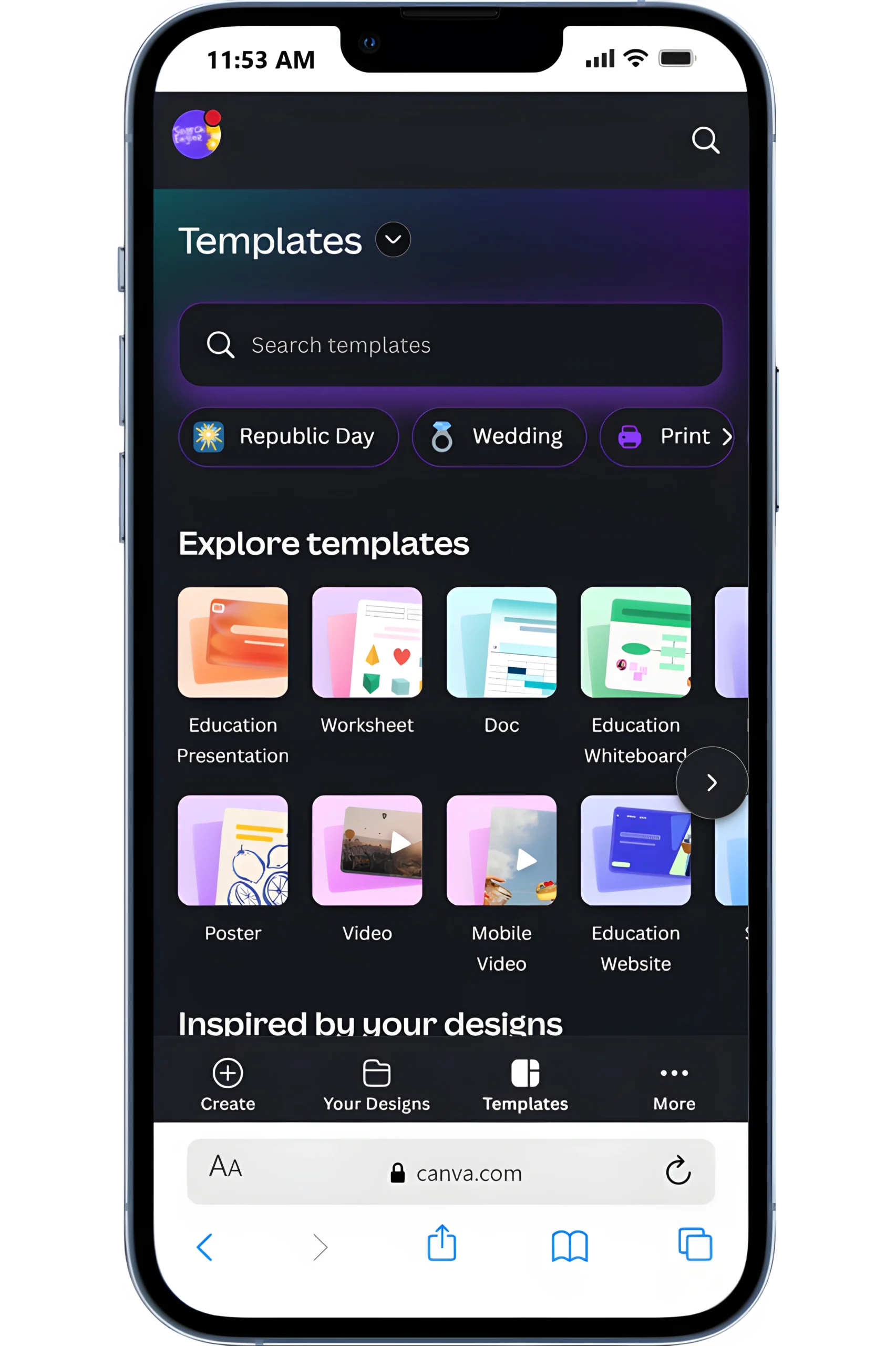
We started with one template, swapped brand colors/fonts, then used Magic Resize to repurpose it for Instagram, LinkedIn, and Stories.

Who it fits best?

Canva is best for marketers, small businesses, and teachers/students who need clean visuals fast, without learning “real” design tools.

What you’ll notice?

The biggest benefits of using Canva are speed and consistency. The benefits of Canva Pro show up when you need Brand Kit, background remover, and resizing at scale. If you design weekly, Pro is worth it. If you design once a month, Free works.

How did we actually use Canva?
(3 Real Use Cases)

These are the Canva use cases we ran on real work, simple, repeatable, and beginner-friendly.

Create a week of content in one sitting

We started with templates, used Brand Kit, and mapped a clean Canva workflow for posts, Stories, and ads.

Make product visuals look “studio-ready”

We used the remove background feature to clean up product photos, add shadows, and build listing creatives fast.

Repurpose designs into video + slides

We used Magic Resize for formats, then the video editor to turn one design into a Reel, plus a deck for presentations.

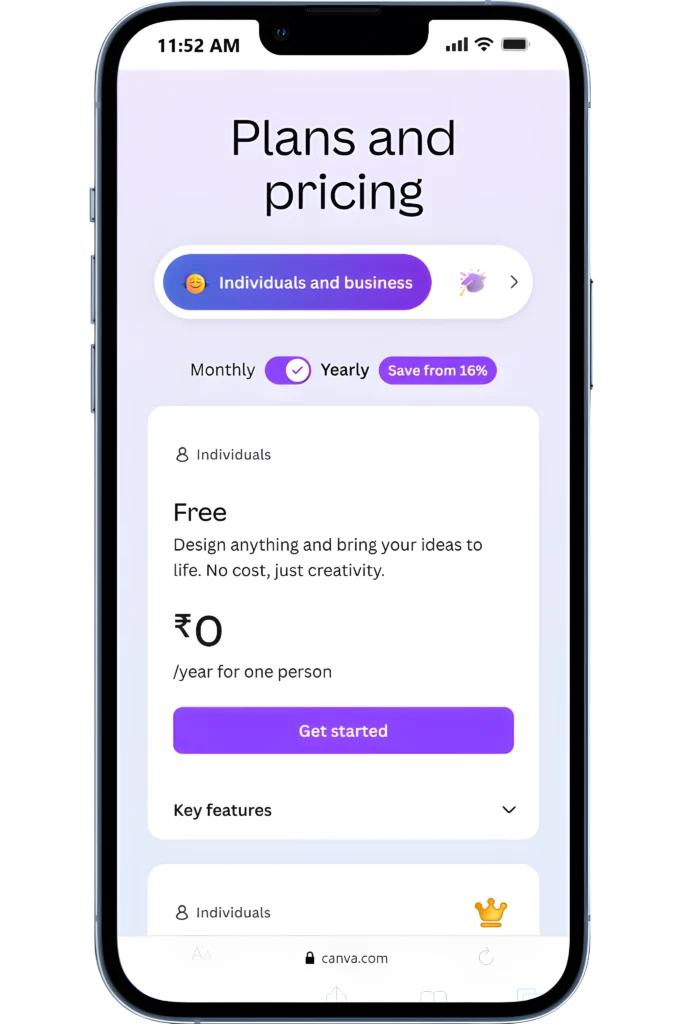
Canva pricing: plans, monthly cost, and the one we’d start with

We tested Canva Free first, then upgraded to Pro to see what you actually gain when you pay.

Canva Pro monthly pricing

Canva Pro generally sits around ~$15/month for one user (pricing varies by region). If you’re publishing weekly, Pro quickly pays for itself in saved time.

ChatGPT Plan Limits

Free is enough to start designing. Pro is where the workflow becomes “fast”: Brand Kit, Background Remover, Magic Resize, and AI features that reduce repetitive edits.

Canva isn’t “expensive”… but it’s only worth it if you use it

If you design once a month, stay on Free. If you design every week, Pro is a smart upgrade.

“Worth it” Test

If Canva saves you time on repurposing + background cleanup + on-brand assets, it’s a yes.

Canva Pro (Recommended Start)

Best starting point if you publish weekly content and need quick resizing, brand consistency, and clean visuals at scale.

$15/month

Premium content library (photos, videos, audio, elements) includes
30-day free trial
Brand Kit + premium assets
Magic Studio AI tools (Magic Design / Magic Write + more)
Content Planner (schedule posts) directly to socials like Instagram
1 user plan (solo creators)
Background Remover + Magic Resize
1TB cloud storage for designs + assets

Important: Canva Pro unlocks premium assets and AI tools. If you use Pro elements and later cancel, you’ll need to swap them out to export without watermarks, so plan before downgrading.

Canva pros and cons (hands-on fit check)

If you’re asking whether Canva is worth using, here’s the honest breakdown after real, repeatable workflows.

Pros

The advantages of Canva show up when you use it weekly, not once.

Templates + drag-and-drop make design “non-scary” for beginners.
Brand Kit keeps fonts/colors consistent across every asset.
Background Remover is a legit time-saver for product photos + headshots.
Magic Resize / Magic Switch helps you repurpose one design into many formats.
Magic Studio AI speeds up first drafts (design + copy) when you’re stuck.
Content Planner can plan + schedule posts directly from Canva (Pro feature).

Cons

The disadvantages of Canva to know upfront:

Template-heavy designs can start to look “same-y” without extra effort.
Not ideal for advanced print work or true pro-level vector workflows.
The best speed features (resize, background removal, scheduling) are Pro-gated.
It’s easy to over-design: too many elements, not enough hierarchy.
Some exports can be limiting if your workflow needs fully editable source files.List item

Quick summary: Canva’s value is real if you design weekly and reuse assets across formats. If you design once in a while, Free is enough.

Fit check: integrations, reporting, team access, and support

If you’re paying for Canva, these are the “make-or-break” checks we recommend before committing.

Note: The free plan is enough to test core design features, but you’ll hit limits on premium assets, brand kits, and exports. Canva Pro unlocks full templates, background remover, and team tools.

NEXT STEP (HOW We TESTED IT)

Try Canva for your own designs

Create a few posts, presentations, or social graphics, test templates for a week, and export real assets, then decide if it fits your daily design workflow.

USER FEEDBACK

What Canva users say (and what matched our testing)

We used Canva across real design tasks, social posts, presentations, ads, and brand assets. Below are recurring Canva reviews from public feedback, plus what held up in hands-on use.

Canva Alternatives

3 tools I’d pick depending on your goal. I used the same everyday workflow (design → customize → export). These are the simplest swaps depending on what you need more of.

ALTERNATIVE 1

Yet to inspect!

ALTERNATIVE 2

Yet to inspect!

ALTERNATIVE 3

Yet to inspect!

Digital Marketing Tool Comparisons

Pick the Right Platform Fast!

Frequently Asked Questions

FINAL CHECK

Final verdict: Should you use Canva?

We tested Canva on real work using one simple loop: Template → Brand → Export.

If you design weekly (social, slides, ads), Canva is an easy “yes.” If you need advanced print or heavy vector work, it’s not the best fit.

Use it if you want fast, on-brand assets without designers.
Skip it if you need full creative control like Adobe.
Start with Free, then upgrade to Canva Pro when you’re repurposing often; Teams/Business is for shared folders + approvals.